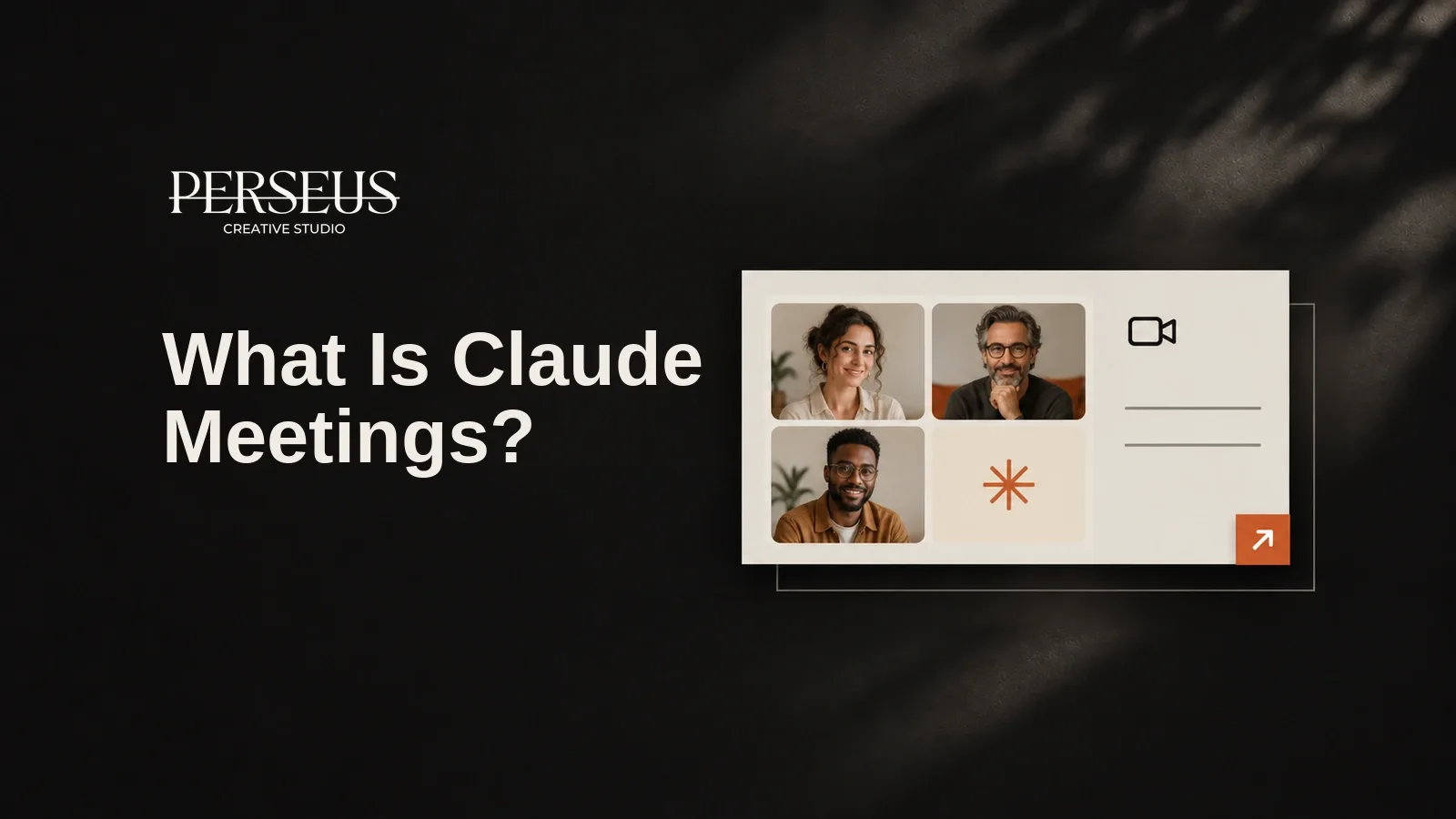
Claude Meetings is Anthropic’s meeting assistant. You add it to a Google Meet call, it joins as a visible participant, takes notes and drafts documents or whiteboards while people are still talking. It’s in beta for Claude Team and Enterprise organisations only, so a personal Pro or Max subscription won’t give you access.
What makes it interesting for a marketing team is the ending of the call: instead of a transcript nobody reads, you walk away with a draft brief everyone has already looked at. That’s the same planning work behind our digital marketing services in Vancouver, covering SEO, advertising and analytics. Claude can speed up the drafting, but the decisions are still yours.
How Claude Meetings Works
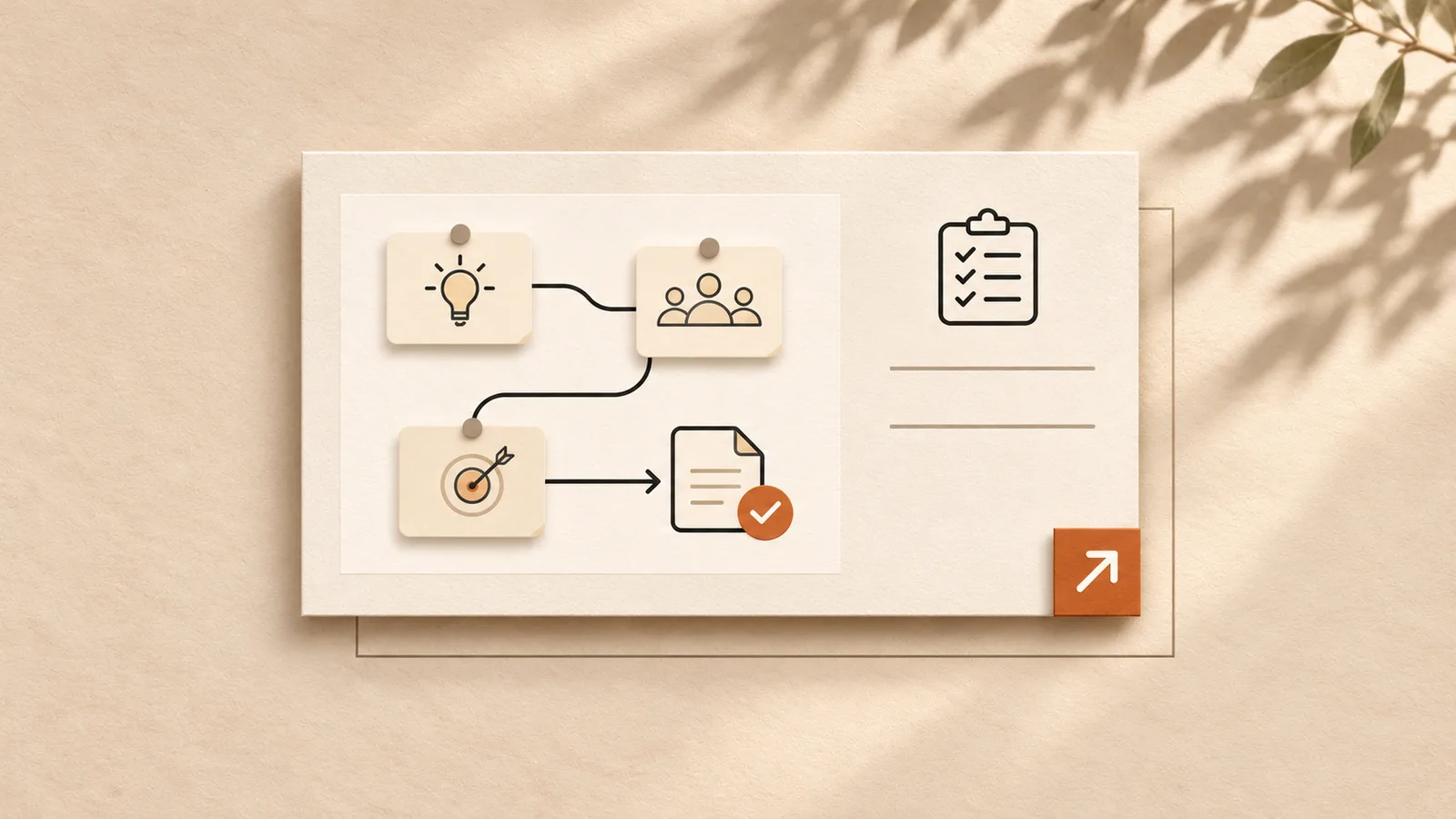
Claude works inside the live call. You don’t upload a recording afterwards. Each meeting gets its own page in Claude with the live transcript, an internal chat and anything Claude has created, and Claude’s tile in Meet shows what it’s doing at the moment.
According to Anthropic, Meetings keeps transcripts, summaries and descriptions of shared screens, but no audio. So anything you present on screen can end up in the notes. It doesn’t mean Claude can see the rest of your desktop or files you never opened.
Live Answers During Calls
Say “Claude” out loud or type your request in the Meet chat. Replies show up in the chat as text. Specific questions work best: “which campaign decisions are still open?” gets you something useful, “what do you think of the project?” mostly doesn’t.
When Claude needs to pull information from a connected tool, it asks each person for permission the first time, and that approval carries forward. Spoken requests are different: for now, Claude confirms who is speaking every time. Approval prompts appear in the Meet chat, or on the meeting page if Claude needs to check an account.
One thing to keep in mind: everyone on the call can read the Meet chat. If you ask Claude to compare budgets or pull client numbers, the answer lands in front of every participant, guests included.
Collaborative Docs and Whiteboards
You can ask Claude to start a document or a whiteboard mid conversation. Both live on the meeting page, where internal invitees can edit them together. External attendees don’t get that access just by being on the call.
These documents stay in Claude. They aren’t Google Docs, and creating or editing a Google Doc needs its own connector and permissions. Decide early where the final version will live, or you’ll end up with three copies of the same brief.
For a creative review, ask for a draft split into agreed changes, alternatives and open questions. Then have someone read it once to make sure a passing idea hasn’t turned into an instruction.
Meeting Notes and Follow Up Tasks
When the call ends, the meeting page holds the transcript, a summary, action items and everything Claude made. Internal invitees get a recap email with a link, and you can share the page with others in your organisation.
A written action item isn’t a finished task. “Send the revised brief” in the notes doesn’t mean anything was sent. Claude can act through connected tools, such as posting a Slack message, but only when someone actually asks it to.
Check names, owners and deadlines before handing out work. If someone said “Friday, if the client approves”, the condition matters as much as the date. And if a task has to go into another system, look at that system to confirm it arrived.
Claude Meetings Availability and Pricing
Anthropic announced Claude Meetings on November 12, 2026. Google Meet is the only supported platform so far, through the Claude web app and Claude Desktop. Anthropic says more video platforms are coming but hasn’t given dates, so Zoom and Microsoft Teams users will have to wait.
Only Team and Enterprise plans qualify. During the beta, organisations using zero data retention, a HIPAA ready configuration or customer managed encryption keys can’t use it.
Canada is on Anthropic’s list of supported regions, and the Meetings guide doesn’t mention any extra restriction for Canadian accounts. Whether your team actually sees the feature still depends on your plan, your owner’s settings and how far the rollout has reached.
Joining manually works on both Team and Enterprise. Auto join is available to all Enterprise customers and some Team customers, according to Anthropic’s November 19 status update.
| Plan | Annual billing | Monthly billing | Notes |
|---|---|---|---|
| Team Standard | USD $20 per person / month | USD $25 | Minimum 2 members |
| Team Premium | USD $100 per person / month | USD $125 | Minimum 2 members |
| Enterprise | USD $20 per seat / month | Annual only | 20 seat minimum, plus usage at API rates |
These are Anthropic’s published US prices before tax. Pricing and currency can differ by region, so Canadian teams should check the quote in their own account before budgeting.
Notes, transcripts and answers that don’t use connected tools are included in your plan. Meeting docs and whiteboards are free until February 10, 2027, and Anthropic hasn’t said what they’ll cost after that. Connected tool use counts against the usage of whoever made the request and can add charges for the organisation.
How to Set Up Claude Meetings

Start by checking that Meetings is switched on for your organisation. On Team it’s on by default unless an owner turns it off. On Enterprise, an owner has to enable it for everyone or for selected roles. Both are managed in Organization settings > Products > Claude Meetings (beta), which is also where owners decide whether members’ connectors can be used in meetings.
Connecting Google Calendar
- Ask an owner to enable Google Calendar for the organisation.
- Open Meetings in Claude and connect your Google Calendar.
- Choose the right Google account and read the permission screen before you approve it.
Connecting Calendar doesn’t give Claude access to Gmail, Drive or anything else. It isn’t read only either, though: Claude’s Calendar connector can create and change events, so make sure that fits your company’s policy.
Adding Claude to Google Meet
- Let participants know they’ll be transcribed, then pick the meeting in Claude’s calendar and click Add Claude.
- If Claude asks to join, the host needs to admit it. If the host declines, Claude won’t try again unless someone adds it again.
- Claude posts a link to the meeting page in the Meet chat. Open it to see the live transcript and workspace.
- To have Claude join automatically, go to Settings > Capabilities > Meetings > Auto join and choose all meetings or all except one on ones. Each person sets this for themselves; owners can’t switch it on for someone else.
Can’t find the feature? Check your plan, your owner’s settings, the excluded configurations above and Claude’s status page. If only auto join is missing, add Claude manually. The official Claude Meetings setup guide has the latest screens.
Claude Meetings for Marketing Teams
Picture a team planning a seasonal promotion. Halfway through the call, the manager asks Claude for a draft brief with four parts: the audience everyone agreed on, the proposed offer, the creative needed and the budget question nobody has answered yet. Claude builds it from the conversation. The manager signs off on the brief once the budget is settled.
Next, the team asks for follow up tasks. “Designer to explore two concepts” is only a suggestion until the designer says yes and a deadline is set. If someone later asks Claude to send the recap through Slack, check who’s receiving it before it goes.
In a creative review, ask Claude to group feedback by asset and by status. “Try a warmer colour” is an idea to explore; “fix the wrong product name” is a must. Keeping them apart saves the designer a lot of guessing. Our guide to the video production process shows where briefs, revisions and approvals fit into a shoot.
For content planning, sort ideas by the question your audience is asking and by channel, then let an editor pick what’s worth producing. A planning doc from Claude doesn’t post anything or approve creative on its own. If you’d rather hand that work to a team, see our social media services in Vancouver.
The easiest way to judge it is a low stakes internal call. Afterwards, compare Claude’s draft with what people actually agreed and note what it missed. That tells you quickly which meetings it’s worth inviting it to.
Privacy and Access Controls
Before you invite Claude, settle four things: who agrees to be transcribed, whose connected tools Claude can use, who can open the meeting page and what stays saved afterwards. A yes to one of these isn’t a yes to the others.
Under Anthropic’s commercial terms, your inputs and outputs aren’t used to train models by default, unless you send feedback or give explicit permission. That’s a general policy for business accounts, not a promise written specifically for Meetings.
The Meetings guide also doesn’t say how long meeting records are kept or how to delete them. If you plan to discuss sensitive client material, ask Anthropic or your account owner first. Disconnecting Google Calendar stops future access, but it doesn’t delete records Claude has already saved.
Participant Consent
Claude joins as a named participant and posts a notice in the chat. Anthropic asks organisers to make sure everyone is comfortable being transcribed before adding it or turning on auto join.
Tell people before the call what Claude is for: notes, shared drafts or help from connected tools. Give them an easy way to object before the sensitive part starts. In Canada, recording and privacy rules can apply to client calls, so check your own obligations. And remember that a client agreeing to transcription doesn’t give them access to your internal documents.
You can tell Claude to stop listening or pause it from the meeting page, and resume from there. To remove it, ask it to leave or click Remove Claude. Adding it back opens the same meeting page. Pausing or removing Claude doesn’t delete what it already captured.
Meetings With External Guests
On Team, meetings with external guests are allowed by default, though an owner can change that. On Enterprise, an owner has to allow them. Each person also has a Meetings with external guests setting. If guests aren’t allowed, Claude stays out of meetings with outside invitees and leaves if one joins, including another company’s notetaker bot.
When guests are allowed, Claude transcribes them and takes notes. It posts its notice in the Meet chat but won’t answer there. Docs, whiteboards and the internal chat stay on the Claude meeting page, and guests get neither the page nor the recap email.
So if a client is on the call, have someone on your team turn the notes into a clean client recap, remove internal comments and send it through your usual channel.
Conclusion
If your team already runs on Google Meet and has a Team or Enterprise plan, Claude Meetings is worth trying, mostly for the drafts it builds during the call, not the notes. It’s less useful if your clients are on Zoom or Teams, or if you handle data that needs zero retention. Start with one internal planning call and judge it by how much rework the draft saves. And for the creative and marketing work that comes out of those meetings, talk to Perseus Creative Studio.